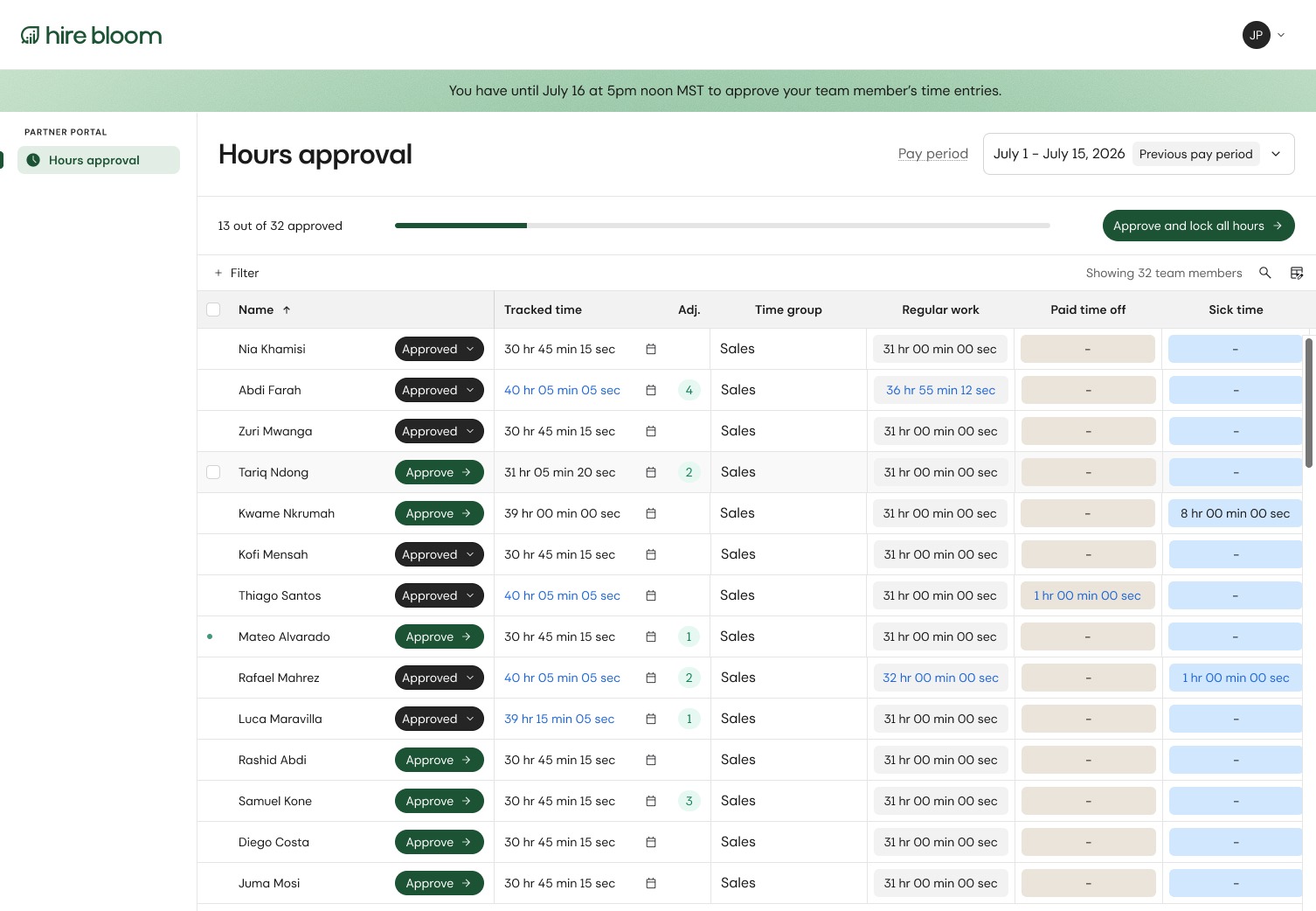
Live Monitoring: Review Hours at Any Time
You do not have to wait until the end of a pay period to see your team's progress. You can check in on your team's logged hours live at any time throughout the open cycle. Your dashboard provides multiple tracking layers for quick verification:
- Total Time Tracked: Displays a running total of hours logged across your entire team for the active pay period.
- Calendar View: Provides a visual, day-by-day breakdown of your team’s actual daily time entries.
- Hours by Time Type: Displays an itemized breakdown of hours. Time types could include regular hours, overtime, PTO, and sick leave (if applicable). Time types depend on each client's preferred configurations.
The Approval Process
The dedicated "Approve" button will be enabled on your dashboard for a temporary window immediately after the close of each pay period.
- Log into your dashboard at the end of the active pay period.
- Carefully review the summarized hours listed for each team member in your dashboard.
- Handling Discrepancies: If a time block looks incorrect, reach out to your team member directly. They can modify and correct their entries before you finalize their data, keeping everything aligned.
- Finalizing Hours: Once you confirm a team member's hours are correct, click the green "Approve" button located on their row.
- Locked State: Approved rows will immediately update to display a black "Approved" button. At this point, their time entries are locked for payroll processing. Managers may unlock time entries for team member edits before the approval window closes.
⚠️ Crucial Constraints & Deadlines
The Approval Window: Managers are granted a strict one-day window on payroll day to review and authorize hours.
Automated System Lock: Once this temporary window expires, the system automatically locks the pay period to prevent unauthorized edits and secure the data for financial processing.
Late Adjustments: Any adjustments after the approval window must be requested through the Hire Bloom support team. Late adjustments may be applied to a later pay period.