Overview
While the HireBloom platform is built to seamlessly aggregate your team's daily hours directly from their calendars, exceptions sometimes happen. To keep your billing and payroll entirely precise, the dashboard provides a clear visual distinction between standard automated time, manual overrides, and non-calendar adjustments.
This guide explains how to interpret the color-coded text and numerical badges on your Hours approval table so you always know exactly what you are reviewing.
1. Tracked Time: Black vs. Blue Text
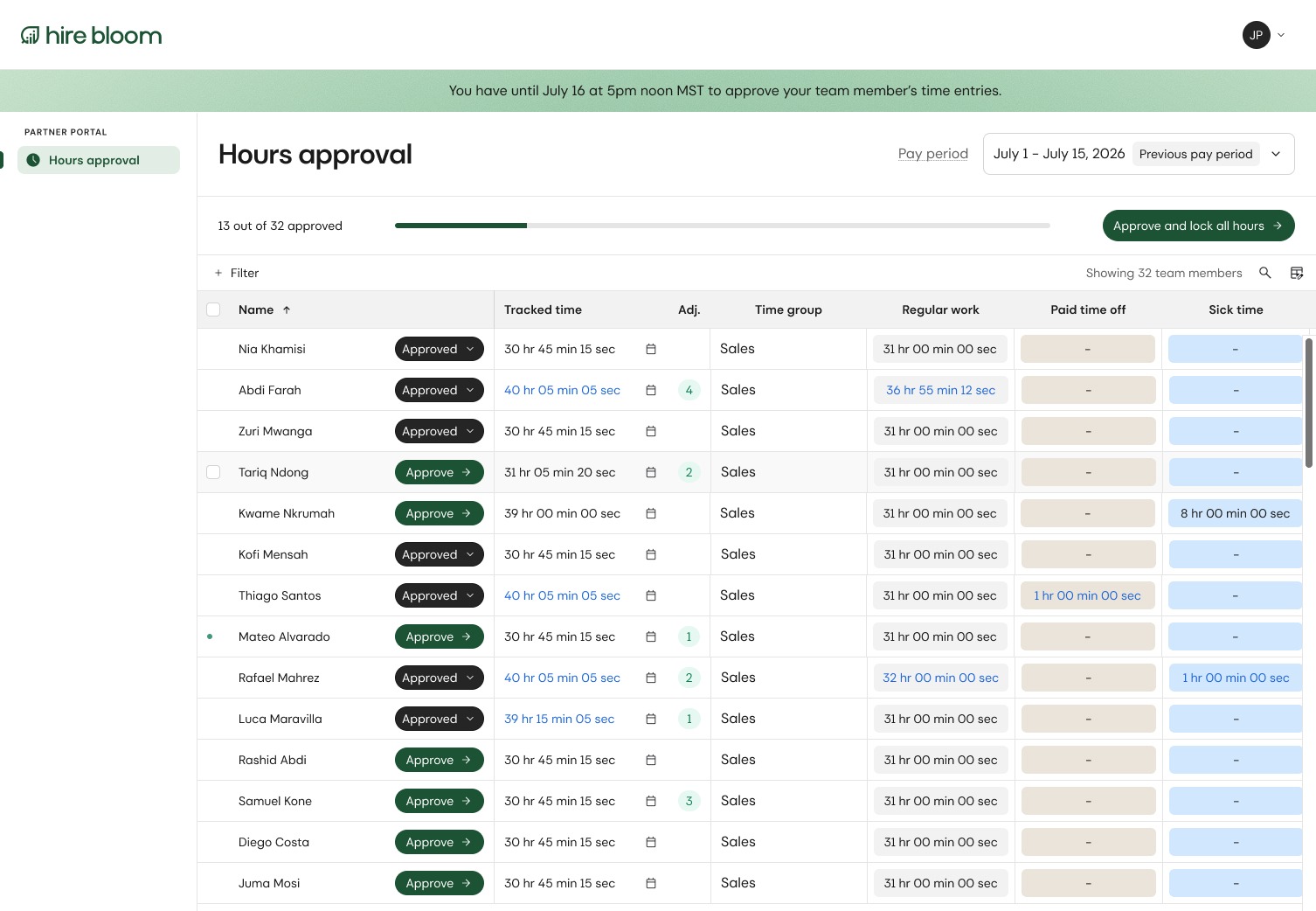
When reviewing your team’s summary table, pay close attention to the color of the text in the Tracked time column:
- Black Text: Indicates standard, unmodified hours. The system is pulling these totals directly from the team member’s active visual calendar entries.
- Blue Text: Indicates a Tracked Time Override. When a time value is blue, a support specialist has manually modified the total hours.
💡 What Blue Text Means: An override forces a fixed number of total hours into the summary block. Because of this, the blue number will no longer correspond to the automated calendar tracked time. This is typically utilized for flat-rate adjustments or when matching rigid billing constraints.
2. The Adjustment Column (Manual Adjustments Badge)
On your primary hours approval dashboard, you will find an Adj. column right next to the calendar icons.
- Numerical Badges: The number displayed inside this column represents the exact count of standalone manual adjustments added to that specific team member's file for the pay period. For example, a green badge showing 2 means two distinct administrative adjustments have been logged on top of their tracked hours.
- The Distinction: Unlike standard daily work entries, these adjustments represent non-time-based rules or separate standalone items—such as adding a visual block of Paid Time Off (PTO), structural billing rules, or mandatory non-wage adjustments.
3. How to View Adjustment Details
If you see a number in a team member's Adj. column and want to verify exactly what it consists of, you can pull up their individual summary card directly from the team member’s line item:
- Click on the line item or name of the team member you wish to inspect.
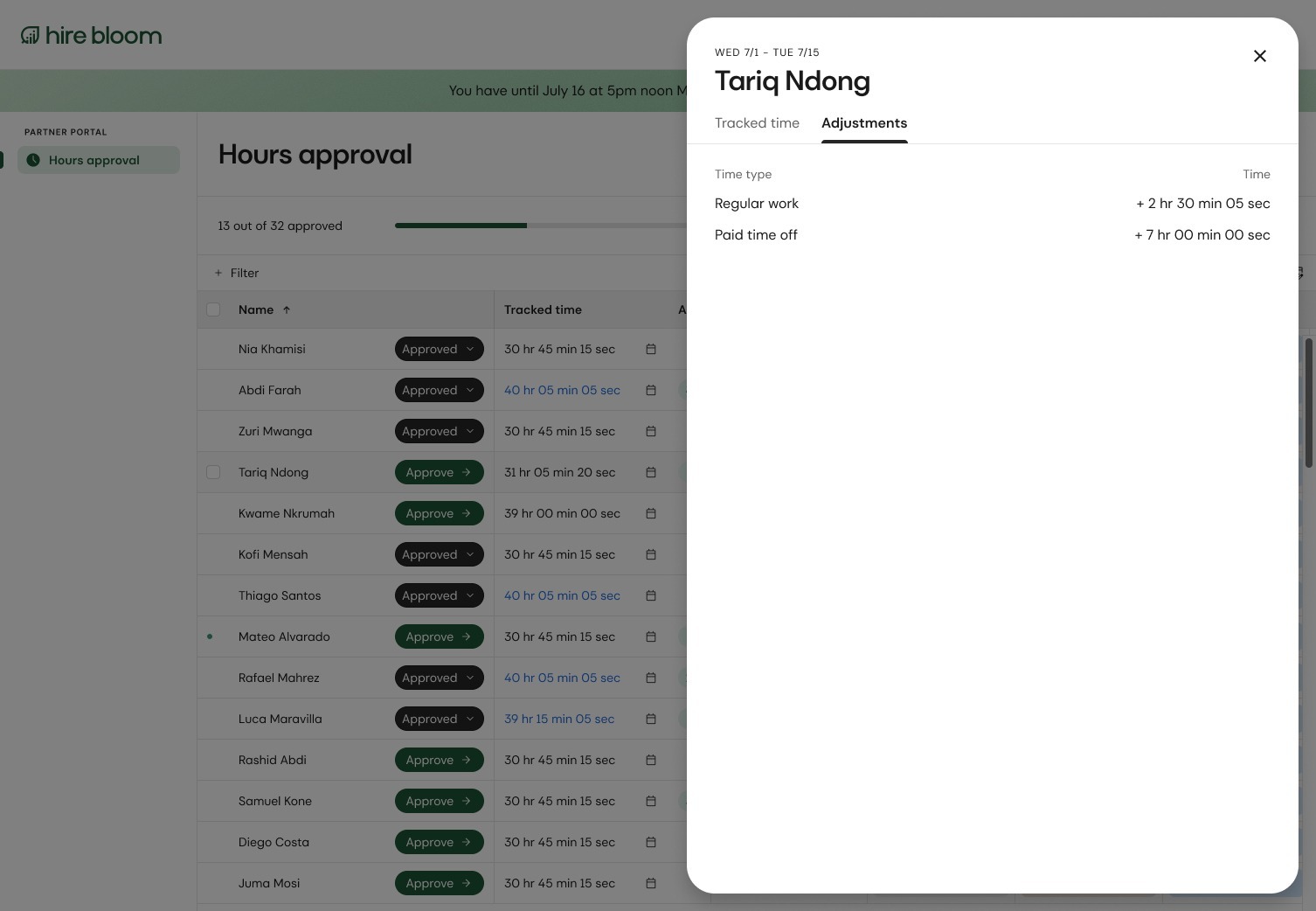
- A detailed side informational panel will automatically slide out on the right side of your dashboard.
- Click on the Adjustments tab at the top of the side panel.
- From here, you can view a fully itemized breakdown showing the specific Time type (such as Regular work or Paid time off) alongside the exact manual hours appended to or subtracted from their period total.