
Your invoices, in one place
Your invoices live in the Hire Bloom portal. Use Billing to see what you owe, pay an open invoice, and look up invoices you have already paid. You can do this yourself, without asking Hire Bloom to email you a copy.
Only people with billing access can see this page. If Billing is missing after you log in, contact your Hire Bloom support team.
How to open Billing
- Log in at https://portal.hirebloom.com.
- Click Billing in the left menu.
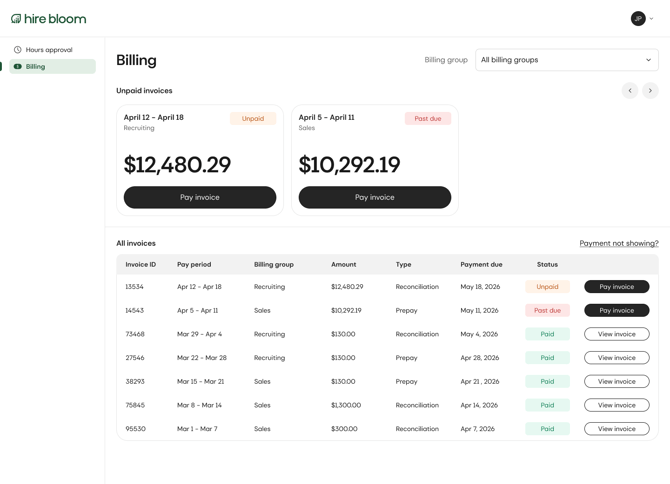
- If your company uses more than one billing group, use the Billing group menu at the top of the page. All billing groups shows every group you can access. Choose one group to see only that group's invoices.
Active invoices
Open invoices appear at the top, under Unpaid invoices. Each card shows the pay period, the billing group, the status, and the amount due.
- Unpaid: A balance is still open, and the due date has not passed.
- Past due: A balance is still open, and the due date has passed.
If you have more open invoices than fit on the row, use the arrows to move through them.
When every invoice is paid, the Unpaid invoices section is hidden. Your history stays in the list below.
Paying an invoice
- Find the invoice on an Unpaid invoices card, or in the All invoices list.
- Click Pay invoice.
- Complete payment for the amount shown on that invoice.
Invoice history
All invoices lists every invoice you can access, including paid ones. Each row shows:
- Invoice ID
- Pay period: The dates the invoice covers.
- Billing group
- Amount
- Type: Prepay or Reconciliation. You pay both the same way.
- Payment due
- Status: Unpaid, Past due, or Paid.
Paid rows include a View invoice button. Click it to open that invoice.
An older invoice can still be unpaid after a newer one is paid. Those rows keep the Pay invoice button.
If a payment is not showing
Please allow 2–3 business days for recent payments to process and reflect accurately on your account.
If the payment still does not appear after that, contact your Hire Bloom support team and include the invoice ID.